Website Accessibility: What to Fix First
Accessibility work has a long checklist and a short list of things that account for most of the actual barriers. Starting with the short list gets real users onto your site quickly; starting with a full audit usually produces a document nobody actions.
This guide covers what to fix first, how to test it yourself in an afternoon, and why overlay widgets are not the shortcut they are sold as.
The fixes with the largest effect#
These are the barriers that stop people completing tasks entirely, rather than making them slightly harder. Fix them before anything on a longer list.
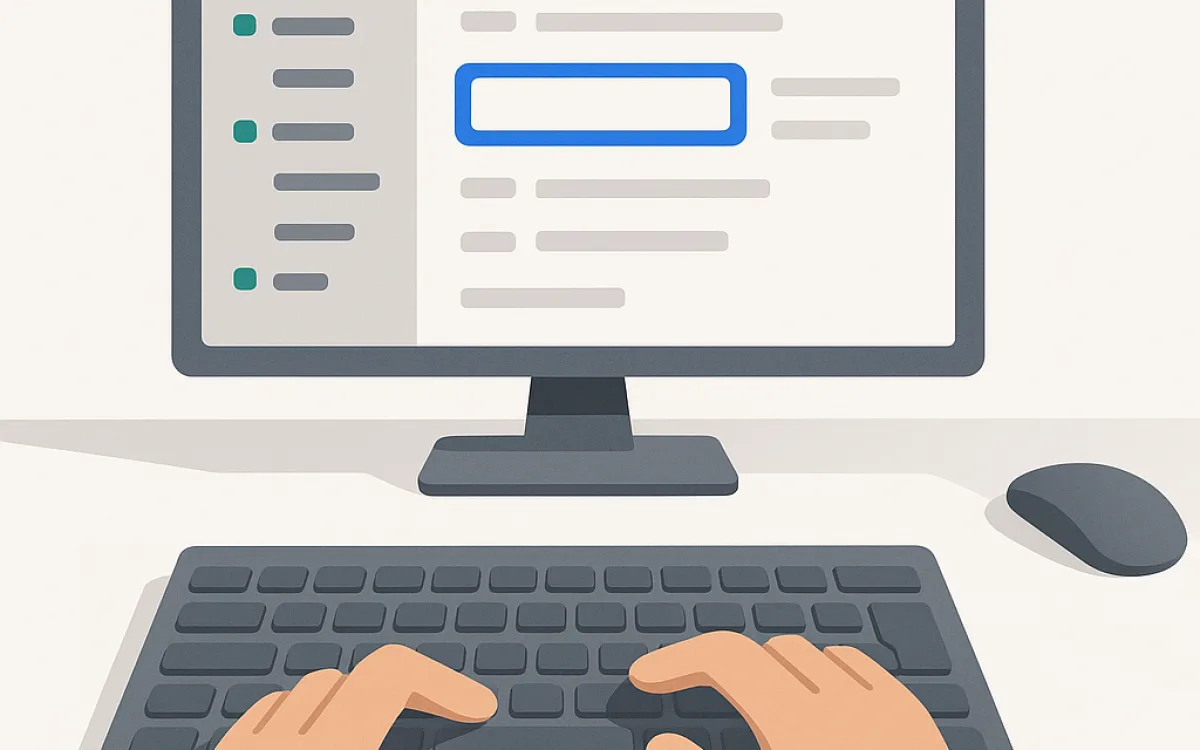
- Keyboard access. Every interactive element reachable with Tab and operable with Enter or Space, in a sensible order, with a visible focus ring. If you can only use the site with a mouse, nothing else on this list matters.
- Text alternatives. Meaningful alt text on images that carry information; empty alt on decorative ones. A missing alt is not the same as an empty one.
- Form labels. A real <label> connected to every input. Placeholder text is not a label — it disappears on typing and is not announced reliably.
- Contrast. Body text at 4.5:1, large text and controls at 3:1, checked against the real background.
- Headings. One H1, no skipped levels. Screen reader users navigate by heading more than by anything else.
- Link text. "Read more" repeated fourteen times gives a screen reader user fourteen identical destinations. Say where it goes.
- Error messages. Next to the field, in text, describing what to do — not colour alone, not a red border alone.
Test it yourself in an afternoon#
You do not need specialist software to find most problems. These five passes take an hour or two on a medium site and find the majority of real barriers.
| Test | How | What it catches |
|---|---|---|
| Keyboard only | Unplug the mouse, Tab through every page | Traps, invisible focus, unreachable controls |
| Zoom to 200% | Browser text size, not page zoom | Clipped text, horizontal scroll, broken layouts |
| Screen reader | VoiceOver or NVDA on the main templates | Missing labels, meaningless links, unannounced changes |
| Automated scan | axe or Lighthouse in the browser | Contrast, missing alt, ARIA misuse — about 30% of issues |
| Greyscale | Browser filter or OS setting | Anything conveyed by colour alone |
Automated tools find roughly a third of accessibility issues. They are a starting point, not a pass mark — a site that scores 100 in Lighthouse can still be unusable with a keyboard.
The patterns that cause the most trouble#
Custom components are where accessibility usually breaks, because native elements come with behaviour that custom ones have to reimplement.
- Custom dropdowns built from divs, without keyboard support or roles. A native <select> is free and works everywhere.
- Modals that do not trap focus, do not close on Escape, and leave the background scrollable.
- Carousels that auto-advance with no pause control — they are hostile to nearly everyone, not only to disabled users.
- Icon-only buttons with no accessible name. An X with no label is announced as "button".
- Infinite scroll with no way to reach the footer.
- Div soup: clickable divs instead of buttons and links, which removes keyboard support and semantics in one move.
- Motion that ignores prefers-reduced-motion.
The cheapest accessibility strategy is using the native HTML element for the job. Every custom replacement is a promise to reimplement behaviour that came free.
Why overlay widgets are not a solution#
Accessibility overlays promise compliance from a single script. They cannot deliver it, because the underlying problems are structural: a script cannot know what an image depicts, cannot write a form label that matches the field's purpose, and cannot repair a keyboard trap in a custom component.
They also interfere with the assistive technology people already use and have configured, which is why a number of disability organisations advise against them. They are worth knowing about mainly so you can decline them for a defensible reason.
- They cannot generate accurate alt text, because they do not know what the image means in context.
- They cannot fix keyboard traps in components they did not build.
- They frequently conflict with the user’s own screen reader settings.
- They do not remove legal exposure — the underlying barriers are still there.
- The money is better spent on the seven fixes at the top of this page.
Frequently asked questions
Is accessibility legally required?
In many jurisdictions, yes, for public bodies and increasingly for private businesses — the European Accessibility Act, the ADA in the United States as applied to websites, and equivalents elsewhere. The obligations differ by country and by sector, so check locally. The practical position is that WCAG 2.2 AA is the standard nearly every regulation points at.
How much does accessibility add to a build?
Designed in from the start, very little — mostly discipline about semantics, contrast and focus states. Retrofitted onto a finished custom site it can be a significant project, because the fixes are structural rather than cosmetic. That difference is the whole argument for raising it in the brief rather than after launch.
What is the difference between WCAG A, AA and AAA?
They are conformance levels. A is the minimum and leaves real barriers in place; AA is what regulations generally require and what most organisations target; AAA includes criteria that are not achievable for all content — for example a 7:1 contrast requirement that some brand palettes cannot meet. Aim for AA and treat AAA as a per-criterion improvement rather than a target.
Does accessibility help SEO?
Indirectly and genuinely. Proper heading structure, descriptive link text, alt attributes, real semantics and fast, stable pages all help both. But the overlap is partial: a site can rank well and still be unusable with a keyboard. Do accessibility work because people cannot use the site otherwise, and take the SEO benefit as a side effect.
website accessibilitywcagaccessible web designscreen readerkeyboard navigationaccessibility testing